

Getting access to wifi
What you will learn
Learn what wifi can do for you
How to get access to a wireless network (wifi) and set it up on your phone, tablet or PC
Use wifi to access the internet at home or a café, shop, hotel
What is wifi?
Wifi is a technology that uses radio waves to connect our devices to the internet — wirelessly
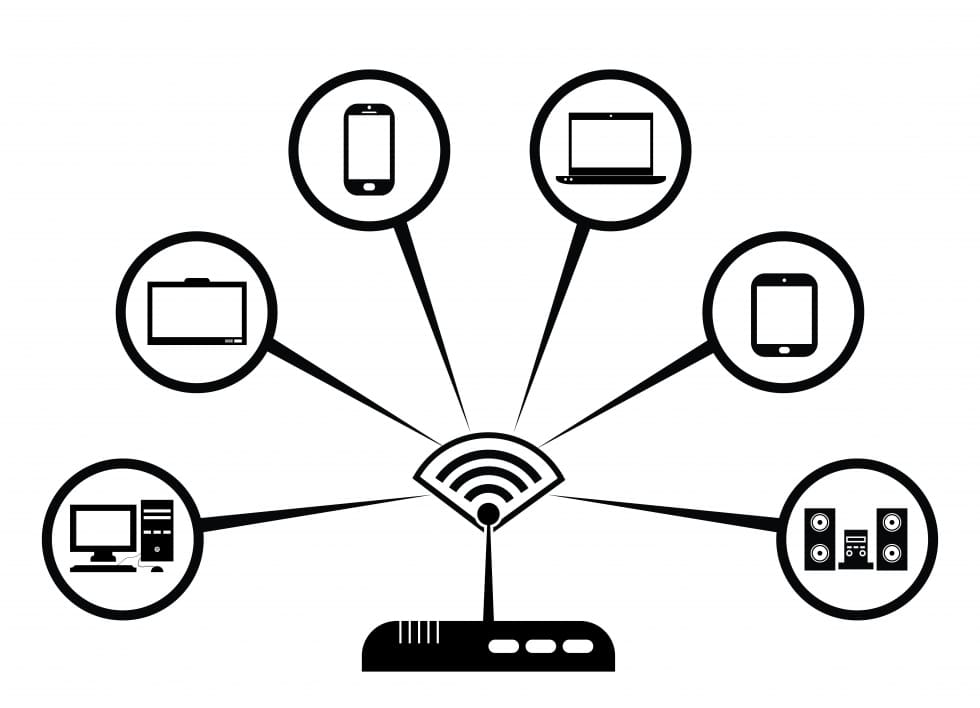 The benefit of wifi is obvious: a wireless internet connection means our devices are not tied to a fixed location within a property. You see, wifi transmits a property’s internet connection via special radio signals, allowing us to move around from one room to another, with no interruption to our internet connection.
This is obviously super handy for users of laptops, tablets and mobile devices. Once we’re connected to wifi, access to the internet is suddenly so much more convenient and flexible.
Sunny day outside? Why not catch up on your emails whilst sipping a coffee in the garden — with wifi, you can!
Benefits
Any device can go online to internet without any cables
At home you need a router with a wireless adaptor
Free wifi is available in shops, cafes, hotels – even sometimes on the street
General steps to Connect to wifi
Step 1
Find a place where wifi is available (wireless network)
Step 2
Make sure the device (laptop, tablet, phone) is capable of connecting to wifi and capable of connecting to the internet
Step 3
Each network has its own name, so you have to find out the name. Often in a shop or a café, there is a sign on the wall or counter that tells you the name for example ‘Freds Café’
Step 4
This will differ depending on the device you are using, but all will be broadly similar:
–Navigate to wifi settings > turn wifi on > click on name of wifi network from list displayed on device > click connect
Step 5
Many wifi networks are private, with access restricted with a password. Enter the password when requested. If a public network does NOT have a password, any data you enter is not secure (just be aware)
You should now be connected to the wifi
wifi at home
Step 1
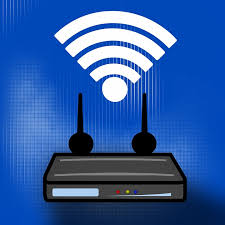
a wireless router must be installed. Most internet providers now install these as standard and will give you the wifi network name and password
Step 2
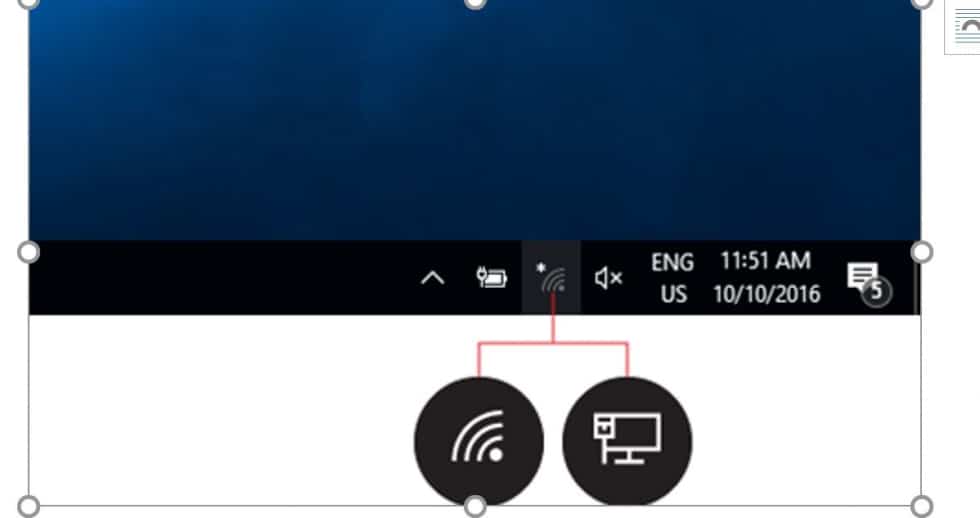
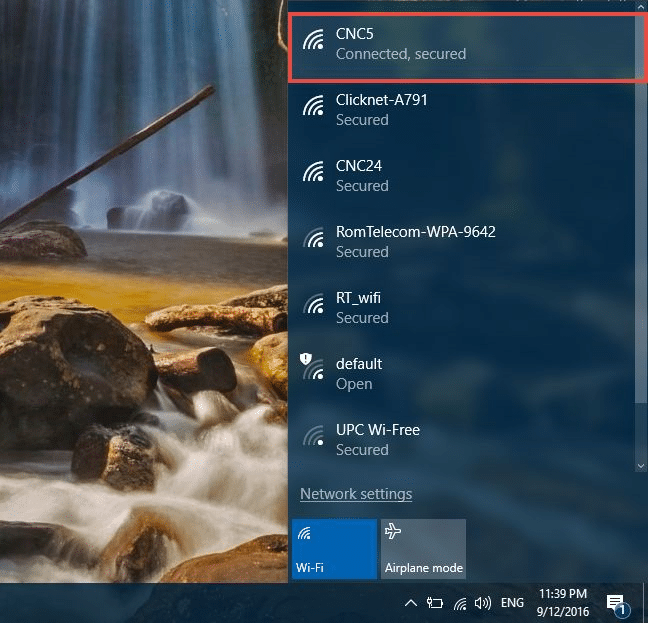
– a wifi icon should display in the system tray in the bottom right hand corner of the screen (Windows 10)
Step 3
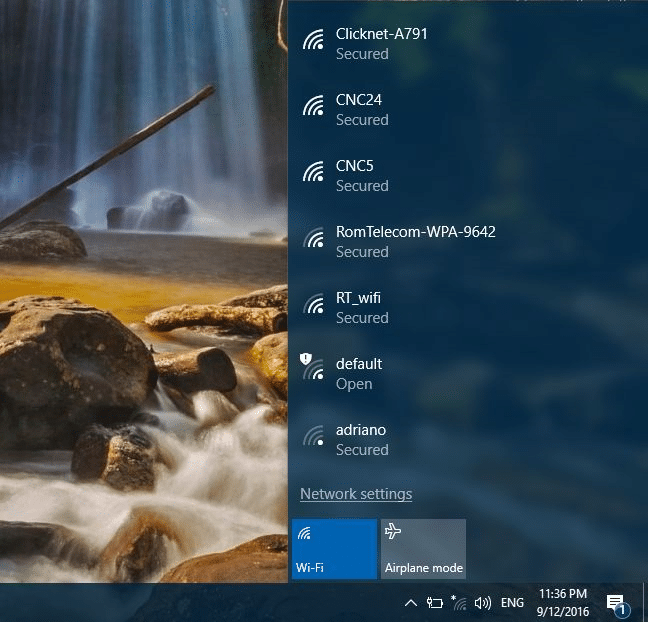
Click on the wifi icon and a list of available networks will display
Step 4
Click on the name and enter name and Password

Step 5
Once you establish a connecion, your Windows 10 PC will ask you whether you want to set its location as private or as public. If you choose Yes , you will “allow your PC to be discoverable by other PCs and devices on this network” , and it’s what you should do if you are connecting to your home or work wireless network. If you are connecting to a public wireless network, choose No. If you don’t choose anything and simply close this dialog, you should know that Windows 10 will set this new network as public, by default.
Connecting an Android phone
Step 1
Swipe down from the top of your phone and tap on the wifi button. Alternatively, from the Home page, go to Apps > Settings and tap on the button next to wifi so that it turns green with a line down the middle. 
Step 2
Tap on ‘wifi’ to see the list of available networks. It may take a moment for all available networks to show up. You can force your device to check for networks by tapping on ‘Scan’

Step 3
If you would like to join a hidden network, tap on ‘Add Wi-Fi Network’ and type in the network SSID, making sure you have the correct spelling. Check with your network administrator if you’re unsure of the name of the wifi network you want to use.

Step 4
Select the network you would like to use. If this is an open wifi connection, you will automatically connect without any further action needed, but be aware that this will not be secure.
Step 5
If you are trying to connect to a secure network, you will need to enter the correct password. This may be found on the back of your router, but if you do not have the password, ask your network administrator.
Step 6
Once you have connected to a network, your phone will automatically remember the details so you don’t have to re-enter the password in future when you’re in range and your wifi is switched on.
Step 7
If you want to switch off your wifi connection, either swipe down from the top of the screen and tap on the wifi button to turn it off or go to Apps > Settings and tap on the wifi button to disconnect. The button will turn grey with a blue circle.

Connecting an iPhone
Step 1
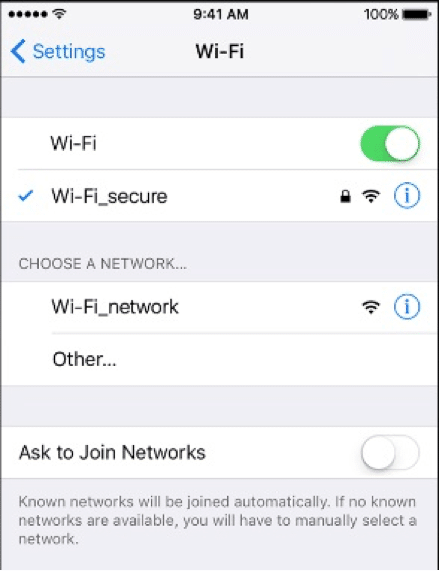
Tap on the Settings button on your Home screen and tap on ‘Wi-Fi’

Step 2
Tap to turn on wifi. Your iPhone will automatically scan for available wifi networks.
Step 3
Tap on the name of the wifi network you wish to use.
Step 4
If you are trying to connect to a secure network, you will see a padlock symbol next to its name. This means that you will need to input a password first and then tap ‘join’. If you are unable to tap ‘join’, this means that you have used an incorrect password, so make sure you’ve got the right details. if you don’t know your password, contact your network administrator.
Step 5
Some wifi networks are hidden and won’t appear automatically in the list of available networks. If you know the name of the hidden network you want to use, tap on ‘Other’ underneath ‘Choose a network.’

Step 6
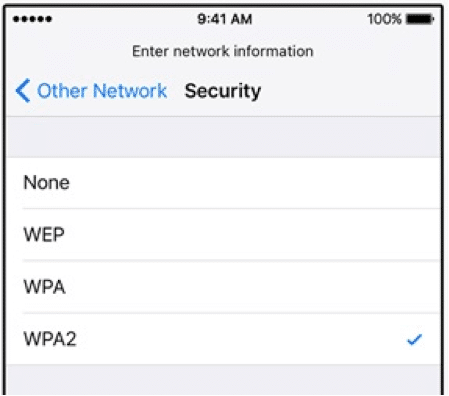
Enter the name of the network, making sure that you are spelling it correctly, and tap on ‘Security’

Step 7
Select the appropriate security type. Please note that just because a network is hidden doesn’t mean that it is secure. If in doubt, check with your network administrator for the security status of the wifi network.
Step 8
Tap ‘Other Network’ to go back to the previous screen and enter the password for the network in the password field. Tap ‘Join’ to connect.

Step 9
Once you are connected to the network, you’ll see a tick next to its name and the wifi symbol in the top left corner of the display.
Step 10
Now you should be able to go into your iPhone’s settings and set up wifi. You know how to switch it on and off by using airplane mode. You also know how to join open, secure and hidden wifi networks.